Task Management Platforms Compared: Todoist vs Asana vs Microsoft To Do
Real-world comparison of three popular task managers. We tested each one for team collaboration, ease of use, and how they integrate with your calendar.
We’ll walk you through syncing Google Calendar, Outlook, and third-party apps. No complicated steps — just clear instructions for Hong Kong professionals managing multiple time zones.
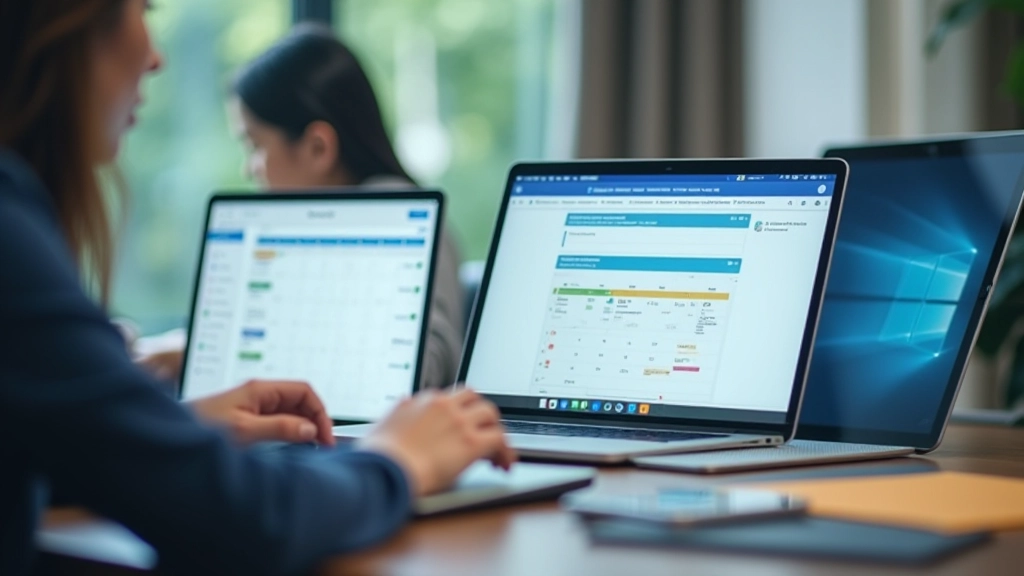
You’ve got Google Calendar on your phone. Your work calendar lives in Outlook. Your project management app has its own scheduling system. Sound familiar? Most professionals we work with juggle 2-3 calendars minimum. It’s exhausting. You’re constantly switching between apps, double-booking meetings, and missing deadlines because notifications don’t sync properly.
Calendar synchronization solves this. When your tools talk to each other, you get a unified view of your time. That’s not just convenient — it’s how you actually stay organized. Here’s what we’ll cover: how to set up basic syncing, troubleshoot common problems, and integrate tools that don’t naturally connect. By the end, you’ll have one source of truth for your schedule.
Google Calendar is the foundation for most people. It’s free, integrates well with Gmail, and works across devices. The basic sync is straightforward — if you’re using Google Workspace (formerly G Suite), your work calendar is already there.
For personal + work separation, you’ll want multiple calendars. Create a new calendar in Google Calendar (click the “+” next to “Other calendars”), give it a name like “Work” or “Personal,” and start adding events. Google handles the syncing automatically across your phone, desktop, and browser. That’s the easy part.
Click the “+” button next to “Other calendars” to create work, personal, and project calendars
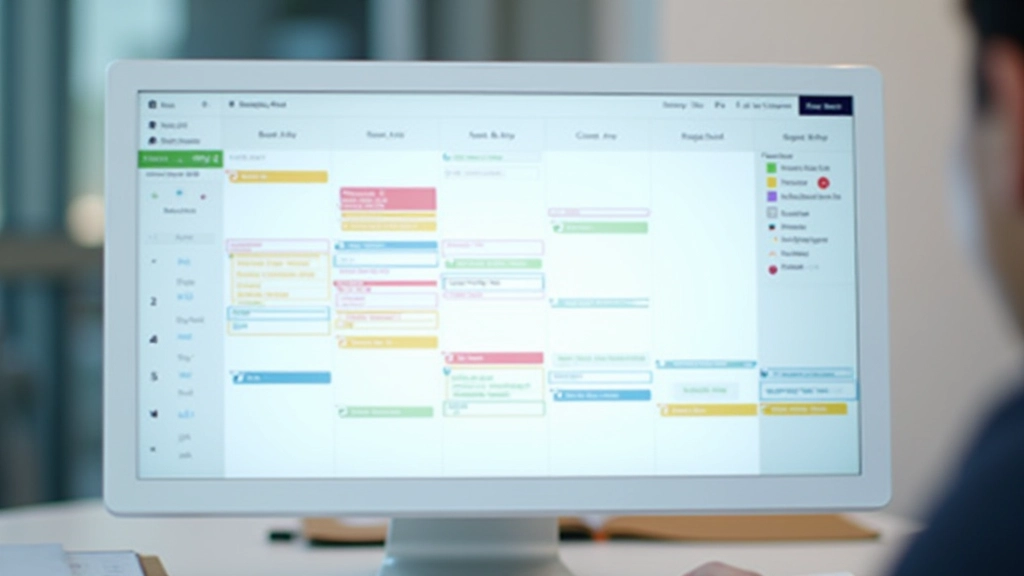
Assign different colors to each calendar so you can instantly see what type of event it is
Right-click each calendar and set notification preferences so you don’t miss important events
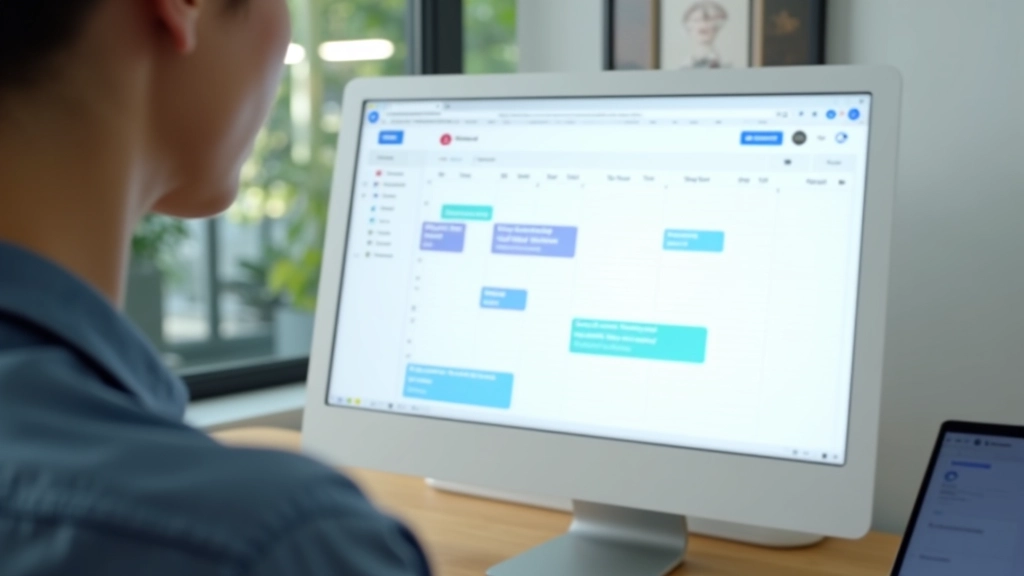
Calendar synchronization isn’t instantaneous. Most platforms sync every 15-30 minutes, and some only when you refresh or open the app. If you’re adding a meeting and immediately switching apps, you might not see it immediately. This is normal. We’re sharing this as educational information — the exact timing varies by platform and your device settings.
Outlook is common in corporate environments, especially if your company uses Microsoft 365. The challenge: Outlook doesn’t always play nice with Google Calendar right out of the box. But there are straightforward methods to connect them.
The easiest approach is using a third-party sync service like Zapier or Microsoft Power Automate. These services act as a bridge between Outlook and other apps. You create a simple automation: “When I add an event to Outlook, also add it to Google Calendar.” No coding required — it’s point-and-click setup.
You can also export your Outlook calendar as an .ics file and import it into Google Calendar. It’s manual but works perfectly for one-time transfers. Right-click your calendar in Outlook Export Save the file Import into Google Calendar. Takes about 5 minutes.
Tools like Asana, Monday.com, and Todoist have their own scheduling features. You don’t want to manage deadlines in two places. The solution is setting up automation so that when a task gets a due date, it automatically appears in your main calendar.
Most project tools have built-in Zapier integration. You’re literally selecting options from dropdown menus — “When a task is created with a due date, add an event to Google Calendar.” It’s that simple. The time zone handling is usually automatic, which matters in Hong Kong when you’re coordinating across regions. We’ve found that setting up these automations in the first week of using a new tool saves about 4-5 hours per month in duplicate data entry.
Changes sync automatically within minutes, not hours
See all deadlines in one place so you don’t double-book
Handles timezone conversions automatically across regions
Once set up, everything runs on its own

Even with solid setup, sync issues happen. Here’s what we see most often and the actual fixes that work.
Check your calendar permissions. In Google Calendar, click Settings Calendars Select the calendar Share. Make sure you’ve given yourself view/edit access. If you’re using Outlook, verify the calendar is marked as “Visible” (not hidden). Sometimes closing and reopening the app forces a refresh faster than waiting.
This usually happens when you’ve synced the same calendar twice or set up automation that duplicates. Delete the duplicate events manually first. Then check your automation settings in Zapier or Power Automate — you might have two workflows doing the same thing. Disable one and test.
This is common for Hong Kong professionals working with global teams. Go to your calendar app’s timezone settings and verify it’s set to Asia/Hong_Kong (or your correct timezone). Check the individual event too — some events have their own timezone setting that overrides the calendar default. Editing and resaving usually fixes it.
When someone sends you a meeting invite, it might land in Outlook but not Google Calendar. This happens because most email platforms have their own default calendar. In Outlook, go to File Options Calendar and set your default calendar. In Gmail, check that meeting invites are adding to your primary calendar, not a secondary one.
Calendar synchronization isn’t complicated once you understand the basic approaches. Start with your primary calendar (Google or Outlook) and get that solid. Then add integrations one at a time — Zapier, your project tool, whatever else you use. You don’t need to sync everything on day one. Pick the 2-3 tools you use most and get those connected first.
The benefit is real. Most people save 3-5 hours per week just by not switching between calendar apps and not managing duplicate events. That’s time you get back. Set up takes maybe 20-30 minutes total, and you’re done. It’s worth it.
Start with one calendar platform and one integration. Test it for a week. Once you see the benefit, add more. This is how you build a system that actually works with your workflow, not against it.
Learn About Our Tools